
How Do I Get IPTV? Step-by-Step Beginner’s Guide (2026 UK)
Updated 22 October 202612 min read
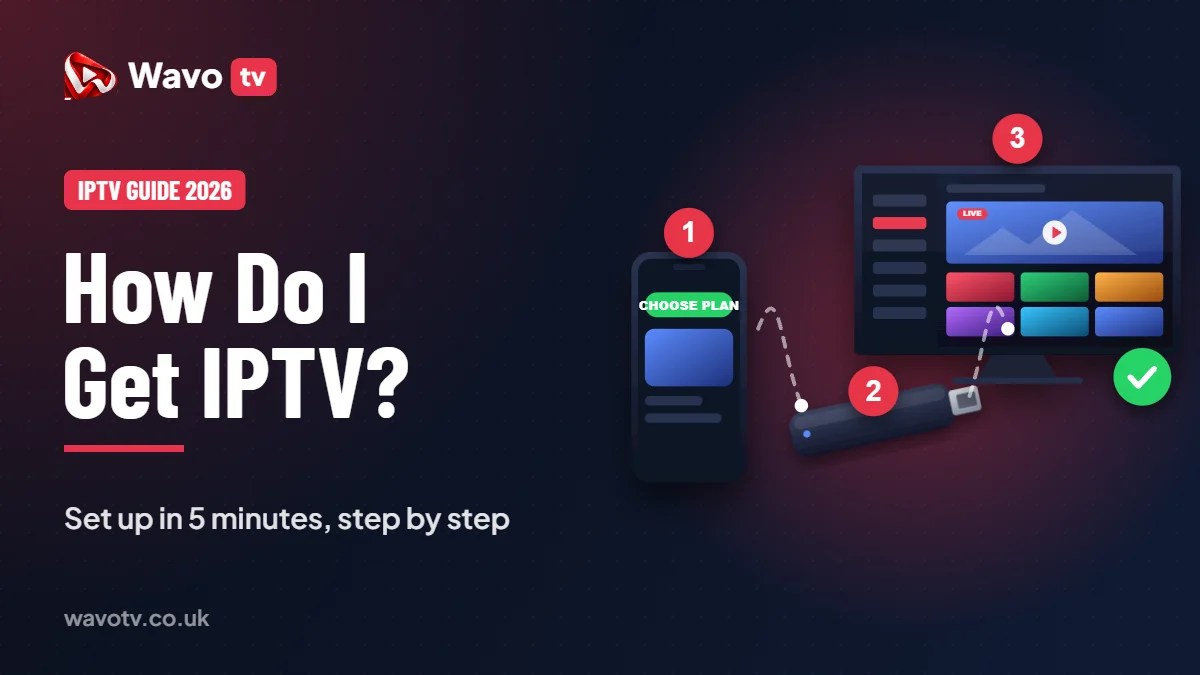
How do I get IPTV? It is one of the most common questions we hear from viewers who are tired of expensive TV bills, long contracts and satellite dishes. The good news is that getting started is far easier than most people think, and you do not need any technical knowledge at all.
In this beginner guide we walk you through the whole process in seven easy steps, from checking your broadband to watching your first live channel. We also cover the best devices, the apps to use, what to pay and the mistakes that trip up first-time viewers in the UK.
In this guide
What Is IPTV, in Simple Terms?
IPTV means Internet Protocol Television. Instead of receiving channels through a dish, an aerial or a cable in the wall, your TV picture is streamed over your normal home internet connection. You log in to a player app with your personal details, and live channels, a TV guide, films and box sets appear on your screen.
Think of it like a music or film streaming app, but with live TV channels included. You can read a technical overview on Wikipedia’s Internet Protocol Television page, but you do not need to understand the technology to enjoy it.
The reason so many people now ask how do I get IPTV is simple: it works on the devices you already own, it costs much less than traditional pay TV and you can cancel at any time.
What You Need Before You Start
Before we answer the big question of how do I get IPTV step by step, make sure you have these three things ready:
- A broadband connection. Around 10 Mbps for HD, 15 Mbps for Full HD and 25 Mbps for 4K.
- A compatible device. A Fire Stick, Android TV box, Samsung or LG Smart TV, MAG box, phone or tablet.
- A subscription. A reliable provider that gives you login details and support when you need it.
That is genuinely all you need. There is no dish to fit, no engineer to wait for and no box to rent.
How Do I Get IPTV? 7 Easy Steps
Here is the complete process we use with new customers every day. Follow it in order and you will be watching within minutes.
Step 1: Test Your Internet Speed
Open any free speed test on the device you plan to use, ideally in the room where your TV sits. If you get at least 10 Mbps, you are ready for HD. If the result is lower, move your router closer or use a network cable before you buy anything.
Step 2: Choose Your Device
For most people, a 4K Fire Stick is the easiest place to start because it plugs into any HDMI port and comes with a simple remote. If you prefer a wired connection, an Android TV box is a great choice. Many Smart TVs can also run IPTV apps directly.
Step 3: Ask for a Free Trial
Never pay for a long plan before testing. A good provider will offer a short free trial so you can check the channels, the picture quality and the stability on your own connection. You can request a Wavo TV trial on WhatsApp in a few seconds.
Step 4: Install a Player App
Your subscription provides the content, while the player app shows it on screen. Your provider will tell you which player works best on your device. On a Fire Stick you install them with the free Downloader app using a short code, which takes about two minutes.
Step 5: Enter Your Login Details
Open the app, choose the Xtream Codes login option and type the username, password and server address from your welcome message. Double-check every character, because a single typo is the most common reason a first login fails.
Step 6: Load the TV Guide
After logging in, give the app a minute to load the channel list and the electronic programme guide. Once the guide appears, you can browse what is on now and next, just like a normal TV box.
Step 7: Choose Your Plan
If you are happy with the trial, choose a plan length and the number of devices you need. Longer plans give the best monthly price, and you can add extra screens so the whole family can watch at the same time.

How Do I Get IPTV on My TV? Choosing a Device
If you are still wondering how do I get IPTV on my exact TV, this quick comparison will help you choose:
| Device | Best for | Set-up time |
|---|---|---|
| Fire Stick 4K | Beginners and any TV with HDMI | 5 to 10 minutes |
| Android TV box | Wired internet and power users | 5 to 10 minutes |
| Samsung or LG Smart TV | No extra hardware needed | 5 minutes |
| MAG box | Classic set-top box feel | 5 minutes |
| Phone or tablet | Watching in other rooms or on the go | 2 minutes |
Our step-by-step setup guides cover every one of these devices with clear instructions.
How Do I Get IPTV at a Fair Price?
When people ask how do I get IPTV without overpaying, the answer starts with knowing the market. Prices vary between providers, but a fair UK price for a full package usually falls between £5 and £15 a month. At Wavo TV, one device costs £14.99 for a month, £26.99 for three months, £39.99 for six months or £59.99 for a year.
That works out at around £5 a month on the annual plan, for live TV, sport, films and series together. You can compare every plan on our pricing page.
Be careful with offers that look too cheap. Very low prices often mean overloaded servers, which cause freezing during the busiest live events.
How Do I Get IPTV Working Without Buffering?
Once you know how do I get IPTV set up, the next goal is a smooth picture. Most buffering comes from the home network, not the provider. These tips fix the majority of problems:
- Connect your TV or box to the router with a network cable where possible.
- If you must use Wi-Fi, use the 5 GHz band and keep the router in an open space.
- Restart your router and device once a week to clear the memory.
- Pause large downloads and updates while you watch live sport in 4K.
- If you use a VPN, choose a nearby UK server so it does not slow you down.
Common Beginner Mistakes to Avoid
- Buying a year upfront without testing. Always trial first.
- Using a very old streaming stick. Older models struggle with 4K and modern apps.
- Typing login details wrongly. Copy and paste them where you can.
- Sharing one login across houses. It can block your account, so add another device instead.
- Choosing a seller with no support. You want fast help when something goes wrong.
What Should I Look for in a Provider?
Knowing how do I get IPTV is only half the job. The provider you pick decides how good the experience will be. Look for these signs of a reliable service:
- A free trial before you pay.
- Servers located close to the UK for faster loading.
- A full TV guide and well-organised channel groups.
- Clear prices with no hidden fees or surprise renewals.
- Fast support on WhatsApp or chat.
- A money-back guarantee on new subscriptions.
For a deeper buyer’s guide, read our article on UK IPTV subscriptions.

How Do I Get IPTV Set Up for Older Viewers?
Yes. Once the app is installed, using IPTV feels just like using a normal TV box, so how do I get IPTV for my parents is a very easy question to answer. You press the channel button, scroll the guide and pick what you want to watch. Many families set it up once for parents or grandparents, and they never need to touch the settings again.
If someone at home is not confident with technology, choose a provider that will help on WhatsApp. A quick message with a photo of the screen is often enough to solve any question in minutes.
How Do I Get IPTV on a Fire Stick?
Because the Fire Stick is the most popular choice in Britain, this is usually the first answer when someone asks how do I get IPTV. Here is the full installation in detail. Keep your login details nearby before you begin.
- From the home screen, open Find, search for Downloader and install it.
- Go to Settings → My Fire TV → Developer options and turn on apps from unknown sources for Downloader.
- Open Downloader, select the address box and type the download code we send you with your login details.
- Press Go, wait for the download, then select Install and Done.
- Open the new app, choose Xtream Codes and enter your username, password and server URL.
- Wait for the channels and the guide to load, then restart the Fire Stick once to keep it fast.
Prefer pictures? Our Fire Stick setup guide shows every screen.
How Do I Get IPTV on a Samsung or LG Smart TV?
If you would rather not buy any extra hardware, your Smart TV may already be the answer to how do I get IPTV without a stick or box. The process is very similar on both brands:
- Press the Home button on your remote and open the TV app store.
- Search for a supported IPTV player and install it.
- Open the app and note the device ID and key shown on screen.
- Send those details to your provider, or enter your login on the app’s website as instructed.
- Restart the app and your channels, guide and films will appear.
Samsung models from 2018 onwards and LG webOS models from the same period usually work well. Full instructions are in our Samsung TV guide and LG TV guide.
Your Checklist Before You Pay
Before you hand over any money, and before you ask anyone else how do I get IPTV working, run through this short checklist. It takes two minutes and saves a lot of frustration later:
- Your evening internet speed is at least 10 Mbps in the TV room.
- Your device is a recent model that supports modern apps.
- You have tested a free trial on the exact device you will use.
- The channels and guide loaded quickly during the trial.
- Support replied to your questions within a reasonable time.
- You understand the price, the plan length and the number of devices.
If every box is ticked, you can buy with confidence.
Which Player App Is Best for Beginners?
Once you know how do I get IPTV installed, the app you choose changes how it looks and feels. All of the options below work with a standard login, so you can switch later if you change your mind.
- Apps with a full TV guide: look for a clean programme guide, favourites and fast channel switching.
- Beginner-friendly players: simple menus with clear sections for live TV, films and series.
- Built-in Smart TV apps: ideal if you want to avoid extra hardware completely.
- Mobile apps: handy for iPhone, iPad and Android phones around the house.
If you are not sure which to pick, ask during your trial. A helpful support team will recommend the best app for your exact device and send you the download code.
IPTV vs Satellite and Cable TV
Many people ask how do I get IPTV because they want to leave an expensive satellite or cable package. Here is how the two compare for a typical UK home:
| IPTV | Satellite or cable | |
|---|---|---|
| Contract | None, choose 1 to 12 months | Usually 18 to 24 months |
| Installation | Install an app yourself | Dish, box or engineer visit |
| Screens | Fire Stick, box, Smart TV, phone | Mostly one main box |
| Sport and films | Included in one plan | Often extra paid packs |
| Moving house | Works anywhere with broadband | New installation needed |
The only real advantage of satellite is that it does not depend on broadband. If your internet is reliable, IPTV is usually cheaper, simpler and more flexible.
What Can You Watch With IPTV?
A complete package should feel like a full TV service rather than a list of random links. With a good plan you can expect:
- Live UK channels for news, entertainment, documentaries, kids and music.
- Live sport including football, boxing, cricket, rugby, darts, tennis and golf.
- International channels from Europe, the US, the Middle East, Africa and Asia.
- A large on-demand library of films and series that is updated regularly.
- A full TV guide so you always know what is on now and next.
Everything lives inside one app, so you can jump from the evening news to a film or a live match in a couple of clicks.
Is My Internet Good Enough for IPTV?
For most UK homes, the answer is yes, and it is the first thing to check when you ask how do I get IPTV running smoothly. A standard fibre package easily delivers the 10 to 25 Mbps that IPTV needs. What matters more than the headline speed is stability, especially in the evening when everyone in the street is online.
Run a speed test at around 8pm on a weekday to see your real evening speed. If it stays above 15 Mbps, you can comfortably watch Full HD. If it drops a lot, a network cable or a mesh Wi-Fi system usually solves the problem without changing your broadband provider.
Can I Watch on More Than One TV?
Yes. A common follow-up to how do I get IPTV is how to use it on several screens. Most plans let you choose how many devices you need. At Wavo TV you can pick from one to four devices, and each device gets its own connection. That means the living room TV, a bedroom TV and a tablet can all play different things at the same time without interrupting each other.
Adding devices to one plan is also cheaper than buying separate subscriptions, because each extra screen comes with a small discount.
Frequently Asked Questions
How do I get IPTV on my TV without a box?
If you have a Samsung or LG Smart TV, you can install an IPTV player app straight from the TV app store. No extra hardware is needed.
How do I get IPTV set up quickly?
Most people finish in five to ten minutes, including installing the app and logging in for the first time.
Do I need a contract?
No. You simply choose a plan length that suits you, from one month to a year, with no long contract.
What payment methods can I use?
Wavo TV accepts PayPal, USDT (TRC20), bank transfer, Western Union, MoneyGram, RIA and Remitly.
What if something stops working?
Restart the app and your router first. If the problem continues, message support on WhatsApp with your device and the channel name.
Final Thoughts
So, how do I get IPTV? Check your internet, pick a device, ask for a free trial, install a player app, log in and choose a plan. It really is that simple, and most people are watching live TV within ten minutes.
Remember that you do not need to be good with technology to enjoy IPTV. If you can install an app on your phone, you can do this. And if you get stuck at any point, a good provider will guide you through each screen until your channels are playing.
The most important step is choosing a reliable provider with real support. Start your free trial on WhatsApp or compare our plans to get going today.